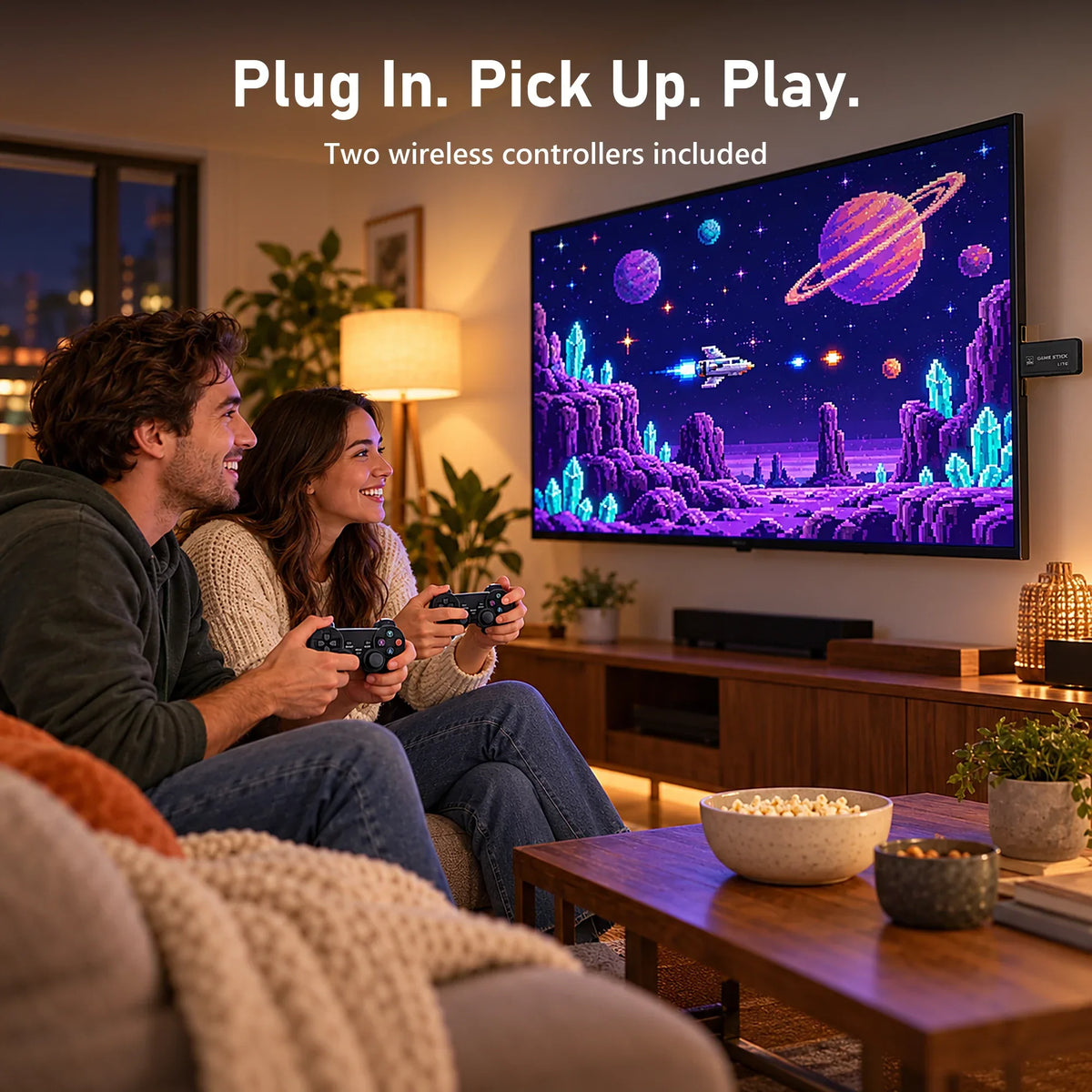
A game stick is a small plug-and-play console that plugs into your TV's HDMI port. Inside is a tiny computer running emulator software, a memory card that holds its system and game library, and a receiver for the two wireless controllers in the box. Connect power, switch the TV to the right HDMI input and you can play classic games on the big screen, with nothing to install.
How does a game stick work?
A game stick packs the parts of a retro console into something the size of a USB drive:
- A small processor that runs an emulator front end. The M15 Game Stick Pro, for example, runs a Linux system based on the open-source RetroArch.
- A memory card with the system and game library. The M8 and M15 use a 64GB card; the X2 Plus comes in 32GB or 64GB.
- A 2.4G wireless receiver that the two included controllers connect to. The controllers talk to the receiver, not to your TV.
- An HDMI connector that sends the picture and sound to your TV, monitor or projector.
- A USB power cable. HDMI carries the picture only, so the stick always needs its own power connection.

Emulators recreate classic consoles in software, which is why one stick can switch between many classic systems from a single menu.
What you need to use a game stick on your TV
- A free HDMI input on a TV, monitor or projector. Most TVs made in the last 15 years have one.
- A USB power source that meets the stick's instructions. A standard 5V USB wall adapter is the usual choice; on the M8 Game Stick Lite the wall adapter is not included.
- Batteries for the controllers. They are not included with the M8, so have a set ready, especially if it's a gift.
- A little space behind the TV. If the HDMI port is crowded, use the HDMI extension cable from the box.
How to set up a game stick
- Plug the stick into a free HDMI port (use the extension cable if it's hard to reach).
- Plug the USB wireless receiver into the stick.
- Connect the USB power cable to the stick and to a power source.
- Switch your TV to the HDMI input you used.
- Put batteries in both controllers, switch them on near the TV and pick a game.
Most setups take under five minutes. For step-by-step photos and pairing tips, see our M8 Game Stick setup guide.
What can you play on a game stick?
Each stick supports a set of classic systems. The range depends on the model:
| Model | Systems it covers |
|---|---|
| M8 Game Stick Lite | Classic 8-bit and 16-bit systems up to PS1 |
| M15 Game Stick Pro | Arcade (MAME, CPS1–CPS3, FBNeo), Atari 2600/5200/7800 and Lynx, Game Boy, GBC, GBA, Game Gear, Genesis, NES, SNES, PC Engine, Neo Geo Pocket Color, PS1 |
| X2 Plus | Adds emulators for 3D-era systems including N64, PSP, Dreamcast and NDS; performance depends on the game |
Two things to keep in mind. First, not every included game runs perfectly, especially on the more demanding 3D systems, so treat a big game-count number as a library size rather than a promise about any single title. Second, only play games you own or have the right to use.
Do 4K game sticks play games in 4K?
No. A "4K" label on a game stick describes the video output it can send to your TV. Retro games were designed for very low resolutions, so the stick scales them up to fill the screen rather than rendering them in native 4K. On a large TV they will look softer than modern games. Turning on your TV's Game mode usually reduces input lag, which makes fast games feel more responsive.
Game stick, TV console or handheld?
| HDMI game stick | Tabletop TV console | Retro handheld | |
|---|---|---|---|
| Screen | Your TV, monitor or projector | Your TV, via HDMI cable | Built in |
| Players | Two (two controllers included) | Two (two controllers included) | One |
| Setup | Plugs straight into the HDMI port | Sits beside the TV on a stand | Turn it on and play |
| Power | USB power cable | USB power cable | Rechargeable battery |
| Example | M8, M15, X2 Plus | M23 | R36S and other handhelds |
Want the full comparison? Read handheld vs. HDMI game stick.
How to choose a game stick for your TV
- Best value for two players: the M8 Game Stick Lite covers classic systems up to PS1 with a 64GB card.
- Widest classic arcade and handheld range: the M15 Game Stick Pro, built on a RetroArch-based Linux system.
- 3D-era systems on the TV: the X2 Plus adds N64, PSP, Dreamcast and NDS emulators.
- A tidier setup: the M23 stands upright beside the TV instead of hanging from the HDMI port.
See our best retro game sticks comparison, or compare current prices and package contents in our retro game sticks and TV game consoles collection.
Quick fixes for common problems
- No signal: check the TV is on the right HDMI input, reseat the stick or try another HDMI port, and confirm the power cable is connected.
- The stick restarts or the picture drops out: unstable power is a common cause; try a compatible USB adapter and cable.
- A controller doesn't respond: replace the batteries, check the receiver is plugged in and move closer to the TV.
- A game runs slowly: try another title; demanding 3D games are the most likely to struggle.
FAQ
Is a game stick good for two players?
Yes. Every game stick we sell includes two 2.4G wireless controllers, so you can play games and modes that support two players.
Can I use a game stick with a projector or computer monitor?
Yes, as long as it has an HDMI input. The stick sends picture and sound over HDMI, so on a monitor without built-in speakers, plug speakers or headphones into the monitor's audio output.
Do game sticks come with games?
Our game sticks ship with a memory card that holds the system and a preloaded game library. Contents can vary by batch, and specific titles are not guaranteed.
What is the difference between a game stick and a game stick "Pro"?
The name alone doesn't tell you much. Compare the listed systems, storage and package contents; for example, the M15 Game Stick Pro runs a RetroArch-based Linux system, while the M8 Game Stick Lite focuses on classic systems up to PS1.